

CHARGE WITH BLINK
How to Charge Your EV
Here's everything you need to know to make your next charge simple, fast, and confident.
Flexible Payment Options
Blink Charging App
1. Open the Blink App: The map will show your location automatically. Or enter the charger’s unit number manually. Register as “Guest” or “Set up Account”.
2. Plug in your EV: Take the connector and plug it into your vehicle’s charging port.
3. Start Charging: Press “Check In” in the app and follow the prompts to set your preferences and payment.
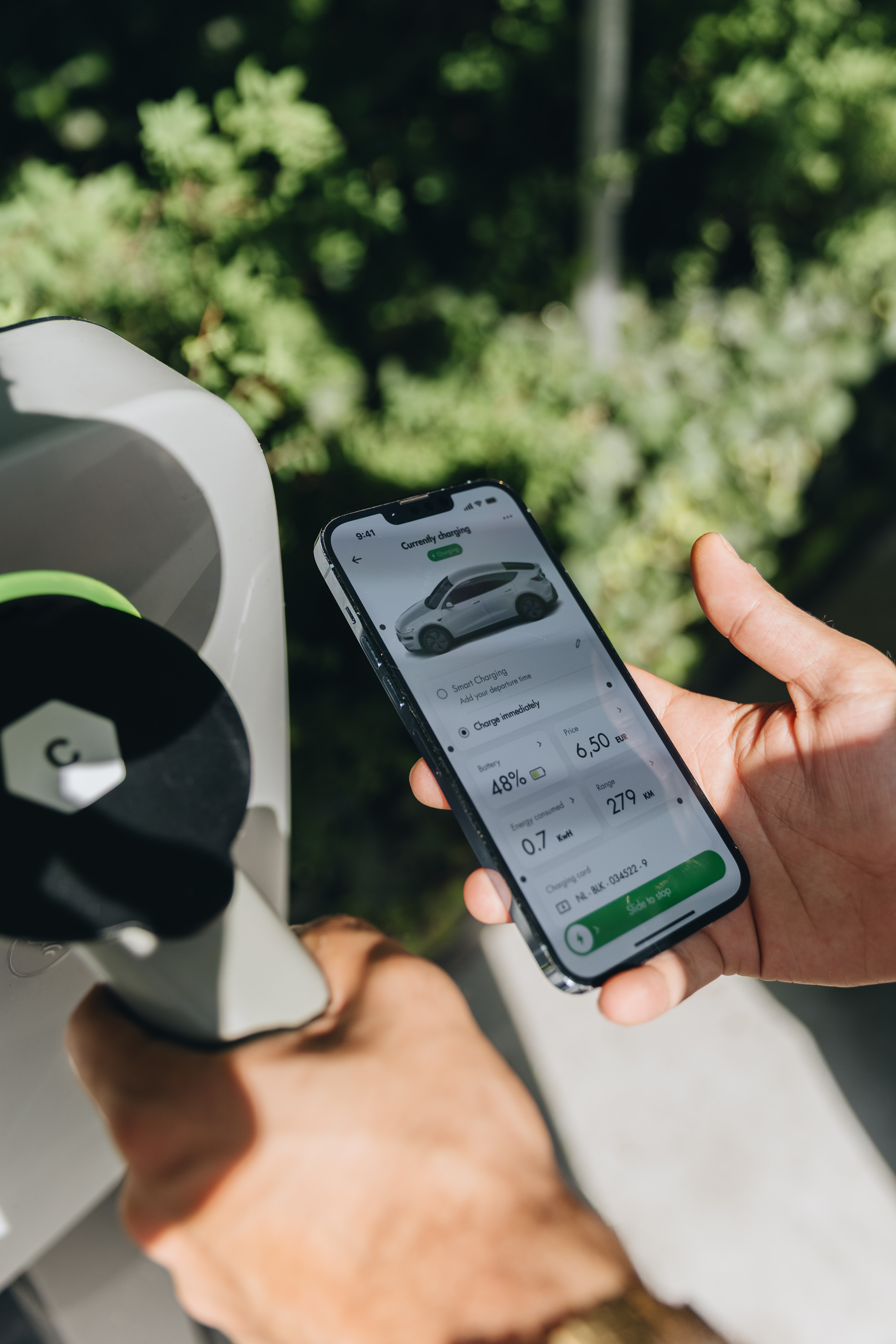
4. Track Progress: The app shows your charging status in real time.
5. End Session
6. Tap “Stop” in the app when you're done, and return the connector to its holder. (Scroll down for the specific instructions for each charger.)
Don’t have the app yet?
FLEXIBLE PAYMENT OPTIONS
Contactless Payment
Some stations use a separate contactless payment terminal located near the charger. To use it:
Plug into the charger.
Take note of the charger ID.
Find the contactless reader.
Scroll and select the correct charger ID from the contactless reader.
Follow the instructions and tap your card to start charging.

flexible payment options
RFID/Payment Card
Make sure your Blink RFID card is activated and linked to your account.
Plug the connector into your EV’s charging port.
When prompted, hold your RFID card against the reader to start charging.

How to Charge on Blink Chargers
All Blink EV chargers can be started using the Blink App, an RFID card, or a contactless payment card—just follow the instructions. Select a charger below to discover more details.
EQ 200
1. Plug in: Plug in your car and take note of the charger ID you are using.
2. Start your charge:
Blink Mobile App: Search for and select the unit you are using. Click “Check In” and follow the instructions to set up your charge
Blink RFID Card: Hold card against RFID reader.
Contactless Payment: Tap your card against the symbol on the contactless terminal when prompted. Please note that it could be located a few meters away of the charger.
The indicator light will pulse when charging begins.
3. End the session and unplug: Once you have finished charging, use the app, RFID or payment card to end the session and unplug your vehicle.

Your Guide to Local Charging
Find EV Charging Stations by City
If you live in one of our featured cities or are planning a visit, explore the Blink City Guides to find nearby EV charging stations. Each guide highlights convenient public chargers and Level 2 charging locations across the city, making it easy to stay powered wherever you go.
FREQUENTLY ASKED QUESTIONS
EV Driver Questions, Answered
Got questions? We’ve got answers. Explore our most frequently asked questions about EV charging, payments, troubleshooting, and more.
Why does the Blink app ask me to add a credit card number?
While it is free to become a Blink member, you'll need to add payment details to your account before using a charger. To simplify this, we conveniently request that you add your payment details to your account during the setup process. Skipping this step is possible, but note that having payment details in your account is necessary for charging at a station.
How do I update my account information?
Once you’ve logged into your Blink Account using the Blink Charging mobile app, click on the ‘Account’ tab. This will grant you access to manage your account, update your password, manage payment options, Blink Car, as well as update vehicle information and view your charging history. To update your email address, please contact our team at support.uk@blinkcharging.com.
Manage Account
This is where you can manage your Blink Membership and personal details:
Update your contact information
Customise your Blink profile
Delete Account
Update Password
This is where you can update your Blink Charging mobile app password:
Update password
After choosing a new password, click update
Payment
This is where you can manage your payment options:
Update or add credit card information
Update billing address
View account balance
Manage auto-refill options
View transaction history
Blink Card
This is where you can view and manage your Blink Membership Cards:
View your current activated Blink card
Request or activate a Blink card
Rename your card
Charge History
This is where you can view and manage your Blink public charging:
View Blink public charging history
View how much kWh energy was consumed